
Genesis Patient Accounts Can Have Multiple Active Care Plans
Multiple Active Care Plans for Each Patient are Possible. Accurate patient care plans enable you to predict future income and keep track of insurance and cash payments. What if you have more than one provider in your office? What if you have a multi-specialty practice with Physical Therapists, Occupational Therapists, MDs, and Dietitians for weight loss? It’s possible to keep track of all of their scheduled visits on one care plan listing all of their visits, but it’s more complicated. It’s better to schedule separate appointments on their various schedules and then create a care plan for each specialty. That’s the simple way to do it. If you want to complicate things, then you can try to have their care plans combined into one or put it all on one from the beginning. So it is possible but there will be more details to pay attention to. Watch this Free Webinar to find out more from Jason Barnes, and to see exactly how care plans work. Enter your information and watch it immediately below. Read the transcript: And so today we’re talking about how you can actually manage a practice where you have patients that are coming in for more than one specialty. Now, this specialty requirement does not mean that it has to be something fancy. You can have somebody who has a care plan for acupuncture, a care plan for massage therapy, a care plan for chiropractic but this is where we’ve seen it more useful is where practices have opted to use multiple active care plans for physical therapy, for MD’s, for weight loss, for nutrition, or detox, for chiropractic and some of which are all of the above and more. So the why we’re doing this is, care plans are great. They do lots of great things for you but we’re gonna actually get into the old care plan versus the new care plan and why you should use the old one and why you should use the new one and what their differences are today. So that is the goal of today’s discussion. So when we start talking about a care plan, why on earth do you want to actually use a care plan? Now, this is a situation where it really doesn’t matter if it’s a cash patient or an insurance patient. When you have a new patient that walks through the door, and they’re gonna enter Care, the main reason for doing a care plan has to put a financial agreement in place with that patient that says, “Okay. Over the course of the next 10 weeks, you’re gonna come in for 60 visits and we are going to agree to pay this much money for your care.†Now that much money can be broken down into insurance versus patient or just patient money but you didn’t necessarily outline every single CPT code that you’re going to build because you can’t at that point. But your treatment plan includes over a period of time how much that patient is going to pay. So if I click on View Care Plan for our specific Genesis test patient here. and as we’re looking at this, we’re gonna break it down and I’m gonna get pretty specific here. So this training isn’t typically for the first time somebody is actually reading a care plan. And what that means is we have a care plan here on the first one that we’re looking at and I’m not gonna explain necessarily on the screen yet but just theoretically, if you’re gonna have a number of visits, you do have to put how much money is going to be charged per visit. So this top line here is a highlighted blue line is what we’re talking about. If you don’t know exactly what you’re gonna bill, each time a visit is built out, you have to go in manually adjust whatever it is you build to what you agreed that you were going to have the patient pay. That is very time consuming and very difficult if you have to do it on a not only a patient by patient basis, but a visit by visit basis. So what the care plan does is allow all of that to be automated as long as you set it up in the first place. If you’ve got one patient with one specialty, that has worked well for over a decade now and many of our users are found that super useful. But as practices have changed and began to evolve, the need has also changed. So if you have multiple specialties, you can still use a single care plan. And we’ll illustrate that today and we’ll make sure that we go through what your options are. But your primary goal for a care plan is still to have the manual adjustments that you would do on a visit by visit basis to bring down what the patient responsibility is going to be automated. That is the purpose to automate the adjustment of those charges down to what the patient actually owes. That doesn’t change no matter what. So even if we’re talking about multiple active care plans, we are still going to do just that. We’re just gonna help you do it and track it in a slightly different way so that you can discuss things with a patient more easily, you can hold clinicians responsible for what they’re doing and ultimately, the patient should have a better experience. So enough of the pomp and circumstance, we’re gonna actually get into the nitty-gritty of this. So, the first thing that you’re gonna to see here is this highlighted line, is yes we have an active care plan 36 V for 2015, 36 visits. And this one is starting from 1123 of 2015 to 1231 of 2016. It’s a long care plan. However, if you move over this, this is a really traditional care plan, probably the most popular 36 visits. And
Genesis Patient Accounts Can Verify Insurance

How does your Chiropractic Practice handle Insurance Verifications, Authorizations and Referrals? As a Chiropractor you know that accurate patient insurance verifications, authorizations and referrals is a very important part of creating a great patient experience in your office. Plus it’s the way you’ll be getting paid for your services, so it’s a very important part of your practice’s health as well. You must verify. It would be a perfect excuse for the insurance company to reject your insurance claim – you didn’t verify it and the treatment wasn’t authorized. Genesis Chiropractic Software has thought of these problems with insurance companies and the insurance verification tools are a click away in your patient’s account. Watch this Free Webinar to find out more from Jason Barnes and Jessica Pancoast, and to see exactly how it works. Enter your information and watch it immediately below. Read the transcript: Jason: Well, good afternoon and welcome everybody. Jason Barnes with Genesis Chiropractic Software. With me, I can’t say as always, because it’s been a while since we’ve been together. It’s Jessica Pancoast, the head of our training and help desk teams here, and I’m excited to be back in the same room with the amount of travel that we had recently. Being back in the same state, actually, is kind of nice. But it’s been exciting. We’ve been out visiting a lot of our practices and I know we’ve even met some of you guys that have been on the calls, so thank you for joining us. We’re gonna give it just another moment here. Great, and we’re just gonna get started then and if you do have a question, though, please use your chat. Jess, where do they get that again? Jessica: If you do not see the chat on the left-hand side, just open there for you, up at the top will be a button that says “Show chat,” and if you click on that the chat window will be there on your left-hand side. And down at the bottom you’ll be able to type in any of your questions. Jason: Okay. So, I’m looking forward to today because some newer things that I’ve heard that people have not been made aware of, as far as our software is concerned and our service. And then, some things that, even though people knew we had, I found that were not being used to their fullest potential. So, I’m gonna go ahead and introduce the topic for today. We’re gonna be talking about insurance verifications, the different ways that we can do those, the service that we can provide. Everyone, I think, knows why they’re so important, but then we’re also gonna talk about authorizations and referrals, as well. So, under this umbrella, really, it all comes down to, “Am I going to get paid for the services that I’m performing?” When I have insurance verification and it’s not done correctly, I wish I could tell you that no matter what information you got or the source you got that information from, it would always be 100% reliable, but I think there are probably a number of people listening to this right now nodding their head when I say, “Even if you’re in touch with the insurance company, you’re not always gonna get 100% accurate information.” Aside from that, authorizations that you have to obtain, how to be notified of those authorizations, and the referrals themselves that you’re gonna get. We’re gonna go over the nuts and bolts of how you’re actually gonna record that information in the system, and more importantly, how we can coach you to help the system reminds you when you’re running up against situations where somebody’s not gonna be covered. And if they’re not covered, what you can do and how you can be prompted to actually have conversations with those patients. Now, for those of you running all cash practices, there are certain times where authorizations are still needed, referring doctors are still needed, but very, very rare. This is mostly for our clients who are actually gonna see patients with insurance and bill to insurance. But that transition over to cash is also super important and there’s a few things, care plans, that can be discussed as well. So, actually, to jump right into it, we’re actually gonna get right into a patient. All right. And our favorite patient, well, maybe not our favorite, Jess, but… Jessica: The one we use a lot. Jason: The one we use all the time is our Genesis patient, and we’re in our regular scheduler here. And I’m gonna click on this patient tab, and we’re gonna zoom in just a little bit for clarity sake here. And so, Jess, I’m gonna ask you in a moment here to help us out with the actual anatomy of these sorts of things. But before we do that, you’re in the scheduler and you have a patient that walks through the door who is not covered by insurance anymore, is one situation we can go over, has an authorization that’s run out, which is a second situation. Or you have a referral that is only good for X number of visits or for a certain date range. Those are the main scenarios that we’re gonna cover today, and then we’re gonna go over how we can set up the notifications, which will help you guys being made aware of these situations, and what you can do with those notifications. So, Jess, can you help us? Jessica: Sure. All right. So, any of the authorizations, any of the referrals, they’re all gonna go on this referral tab, that way the system is able to, as best they can, help you out and automatically apply the appropriate referrals and authorizations to the claim when it’s created. So, when you go into this referral tab, a lot of times you’ll have a default row that just has pretty much no information, no real information, anyway. It has some basic dates
ClearGage is integrated into Genesis Patient Accounts

How does your Chiropractic Practice handle Patient Credit Card Payments? ClearGage makes it easy. As a Chiropractor you know that accurate patient credit card processing and patient accounting is a very important part of creating a great patient experience in your office. Can you charge a patient’s card in real time and automatically post it in your patient’s account? Do you offer patient financing where everyone qualifies with no credit checks? Well, now you can with ClearGage. Genesis Chiropractic Software has thought of these questions and the ClearGage tools you need are just a few clicks away. Watch this Free 45 minute Webinar to find out more from Jason Barnes and Chip Hunziker, and to see exactly how it works. Cleargage offers real-time credit card processing, electronic checks, ACH, patient financing, online bill pay for patients and a lot more. The patient financing will make it much easier for your patients to accept a long term care plan. Your patients will value their care a lot more because they’ll want to get their money’s worth. That means less no shows and a smaller number of no future appointments as well. Learn how to use Cleargage to improve your patient satisfaction. Enter your information and watch it immediately below.
How to Write SOAP Notes Faster
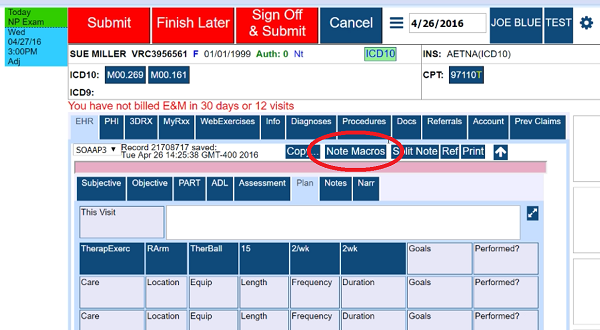
Use built-in SOAP Note Macros to type your narrative with clicks on macro buttons. Remember the good old days of typing and printing SOAP Notes papers for mailing to insurance companies? Those days are not quite over for some practices that are clinging to the old days. For the practices that are moving on with the required Electronic Health Records (EHR), you need it to be a simple, easy to use interface. Now imagine taking it a step further by creating a button to type a narrative that you type multiple times a day. You click that button and insert that text where ever you need it in your SOAP note. You can create as many time saving macro buttons as you want. Now imagine one more step further… you could use a touch screen in the exam room to touch your macro buttons and complete your note in seconds! Then touch a button to sign-off and submit it to the claim scrubbers. What could be easier than that? Learn how with the free webinar that can be viewed right on this page. Read the transcript: Jason: Good afternoon, everyone. We are going to give this a couple of minutes to get started. Jason Barnes and Jessica Pancoast here. We always give just a moment or two for a few people running a minute or two late to login. So, thank you for joining us today and we’ll get started in a moment. We’ll just give it another 30 seconds here, Jess, and then we’ll introduce the topic and get going. We usually get started four or five minutes past the hour and we’ve got a number of people that are logged in so far. What we’d like to tell everyone is you’ll notice that you’re muted, and if you’d like to ask a question, pretty much any given moment, feel free to absolutely type one in. Jess, can you give that little instruction you always give that I don’t remember? Jessica: Sure. On the left-hand side there should be a chat box. If you are not seeing that chat box, up at the top left there is a button that says “Show chat,” and you can click on that and you’ll get the text box where you’ll be able to type in your questions, and we’ll check on those questions throughout the webinar and, yeah, answer them. Jason: Great. So I do this to you, I don’t ever really forward the emails over to you because it’s my email that’s associated with the webinar account, but we didn’t get almost any feedback after the multi-specialty webinar but it’s been watched over almost 400 times since then. Jessica: Wow. Jason: So, by far, our most viewed webinar and the comments have been…actually, a spectrum of comments have been made, most of which positive, but a lot of which wanted to know more with a lot of questions. So, if you’re listening to this right now wondering if we got them, we did. We do not respond to anyone individually, but we have our team getting together all the questions so that we can take a second swipe out of it. We are projecting the first or second week of June to do a follow up webinar for our multi-specialty practices. But today’s topic is, again on efficiency. And I’ll start with…this is most for clinicians, but this also affects your billing and your coding of claims as well. One of the great things about the Verical system is that it’s going to create, every single time a clinician goes in to bill out a visit, it creates an exact duplicate of the previous visit, including your CPT and diagnosis codes. However, your first visit, it’s still up to you to fill in which CPT codes and diagnosis codes. So, today is about how we can save a lot of time on that first visit with things that you do often and repeatedly, I guess is a better way of saying that. And then, any time that you have a previous visit that’s been loaded with documentation as well as the CPT code and diagnosis codes, we’re gonna show you how to add things easily as well, so that you can save time doing that. So, we’re gonna focus how you can do that with the documentation, but with an emphasis today, really, on making sure that diagnosis codes and even some of your CPT codes can be included with those conditions or types of patients that you see on a frequent basis. So, to do that, we’re actually just going to get into a demonstration right now. So, Jess, we’re gonna start out with just a basic overview of our XMR and then we’re gonna move into our coding. Jessica: Okay. Do you want me to just go into a brand new patient? Jason: Yeah, absolutely. Jessica: Because I actually created one this morning. Jason: Yeah. Perfect, perfect. Thank you. Jessica: All right. This is actually a brand new patient I created earlier today. So, in the travel card, you’ll that the EHR tab is the first one that is opened on this account and this is where we’ll be able to create our note. There are several different tabs that can be used to put the note together, as well as blank text boxes so something can be just typed in. We do, of course, recommend using our button selections as that will make the note faster to create. And, of course, to fill in a basic note, you are clicking in the buttons and making selections in the popup that comes up. So, I’m just going to, for example, put in a quick little sports injury that happened, some shoulder pain. Jason: We were told in the past to slow down, to slow down, and I don’t fault you, but I understand completely. And just do one CTRL-plus for me, Jess. Jessica: Sure. Jason: Thank you. Jessica: So, I’m just clicking on
